Integration with LTI
The LTI integration is demonstrated using the example of UZH OLAT and might look different for other learning management systems.
KlickerUZH can be integrated with LMSs (Learning Management Systems) through the LTI 1.3 standard. When connected correctly, KlickerUZH can use the LMS's authentication mechanism to automatically authenticate students (or create an account for them) and grant them access to the corresponding KlickerUZH content.
How should I structure my KlickerUZH elements?
When integrating KlickerUZH into an online course (e.g., on UZH OLAT), several components can be included. We suggest the following structure to effectively set up your course.
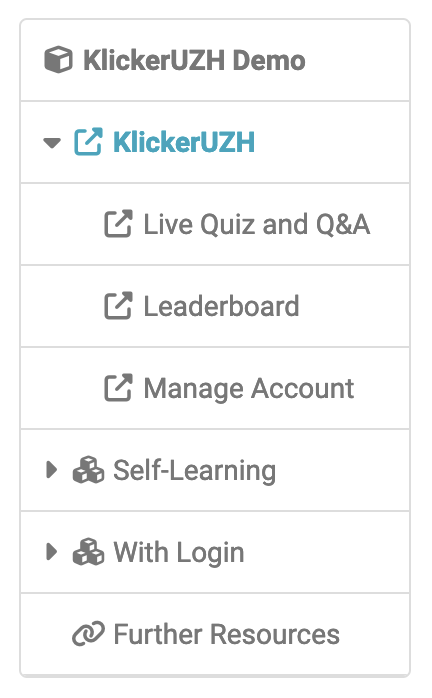
Create a KlickerUZH structure with the following LTI pages:
-
Course overview and documentation: As part of your KlickerUZH course configuration, you can add a description containing an overview of how KlickerUZH will be used in your course, including the timing and purpose of its features. This section can also include information on the initial login and account setup. The information given in this text box can then be integrated into your OLAT course, providing your students with an overview and guidance.
-
Live Quiz and Q&A: Make sure to integrate a page where your students can access active live quizzes and Q&A quizzes (if you are using them) directly from OLAT.
-
Leaderboard: If your course includes gamification elements and/or groups and group activities, it makes sense to dedicate a page to the leaderboard (where students can also manage their groups). Motivate students from time to time by presenting the leaderboard, which tracks individual and group points.
-
Manage Account (required): This page allows students to create or update their profile and manage their KlickerUZH account. This is the first page students should visit if they have not used KlickerUZH before and want to participate with an account. After creating an account here, they will be automatically logged in on all other KlickerUZH pages within OLAT. If students have already signed up for KlickerUZH outside of OLAT with their university e-mail address, they should also visit this page to ensure that their account is linked correctly.
-
Self-Learning Area: In the self-learning area of your OLAT course, it makes sense to embed Practice Quizzes created with KlickerUZH as one OLAT element per quiz. This allows you to integrate synchronous (live quizzes) and asynchronous activities within the same gamification framework.
How can I set the language for KlickerUZH activities embedded in OLAT?
KlickerUZH allows you to set a course language during creation or in the course settings. This language will be used as the default for all access links you copy from the corresponding course overview page (both direct access and LTI integration links), as well as QR codes.
While this means that all activities integrated into OLAT using the provided LTI access links will be displayed in the course language, students may still change the language to their preferred language using the corresponding functionality in the avatar dropdown. Students accessing your course activities directly through the KlickerUZH app will see the activities in their preferred language, which they can set in the app settings.
How can I integrate KlickerUZH pages into my OLAT course?
To successfully integrate individual KlickerUZH pages into your OLAT course, we outline the required steps for the different components below, showing you how to integrate the course overview and student documentation, activity lists (including Live Quiz and Live Q&A), leaderboard, account management, and individual activity links.
To embed a KlickerUZH element in OLAT, you always start by creating a new course element of the type “LTI Page.” The subsequent steps depend on the type of KlickerUZH element you would like to create (as listed below).
Please note that the LTI integration is currently only supported for UZH OLAT for security reasons. If you would like to use it at your institution or with another LMS, please have your administrator reach out to us.
Course Overview and Student Documentation
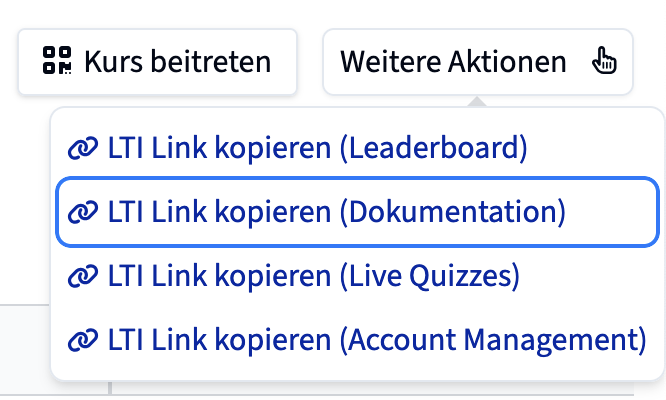
- To integrate the course overview and student documentation, go to “Page content” on your newly added LTI page. Here, you can choose “KlickerUZH” as your LTI version – this way, many settings are configured automatically.
- Additionally, add the correct URL for your KlickerUZH course. This URL can be found in the top right corner of your KlickerUZH course page under “LTI Links” > “Copy LTI link (Documentation).”
- Activate “Skip launch page.”

Activity Lists (including Live Quiz and Live Q&A)
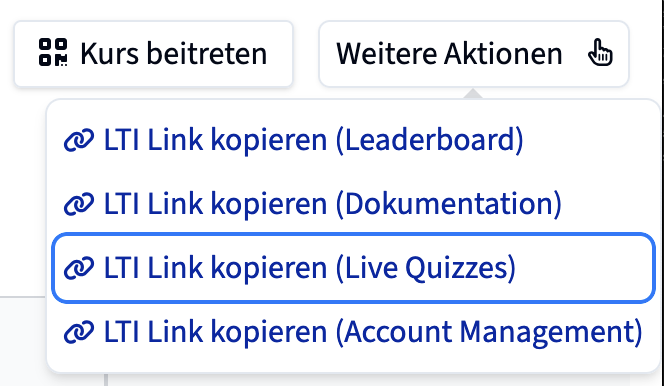
- To integrate overview pages of all available activities of a certain type, create another "LTI Page" element in your OLAT course, select KlickerUZH as the LTI version, and add the correct URL for the activity list.
- If only one activity of a certain type is available, this page will redirect students automatically to the activity itself. Accordingly, we recommend including the Live Quiz List using the LTI link shown on the right, so students can quickly access Live Quiz and Live Q&A during the lecture.
- Activate “Skip launch page”.
Leaderboard
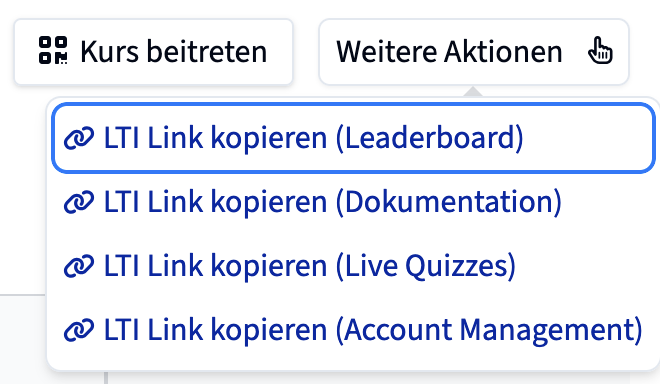
- For gamified courses, we recommend integrating the course overview / leaderboard as a separate LTI page.
- You can find the corresponding URL again under "LTI Links" > "Copy LTI link (Leaderboard)" on your KlickerUZH course page.
- Activate “Skip launch page”.
Account Management

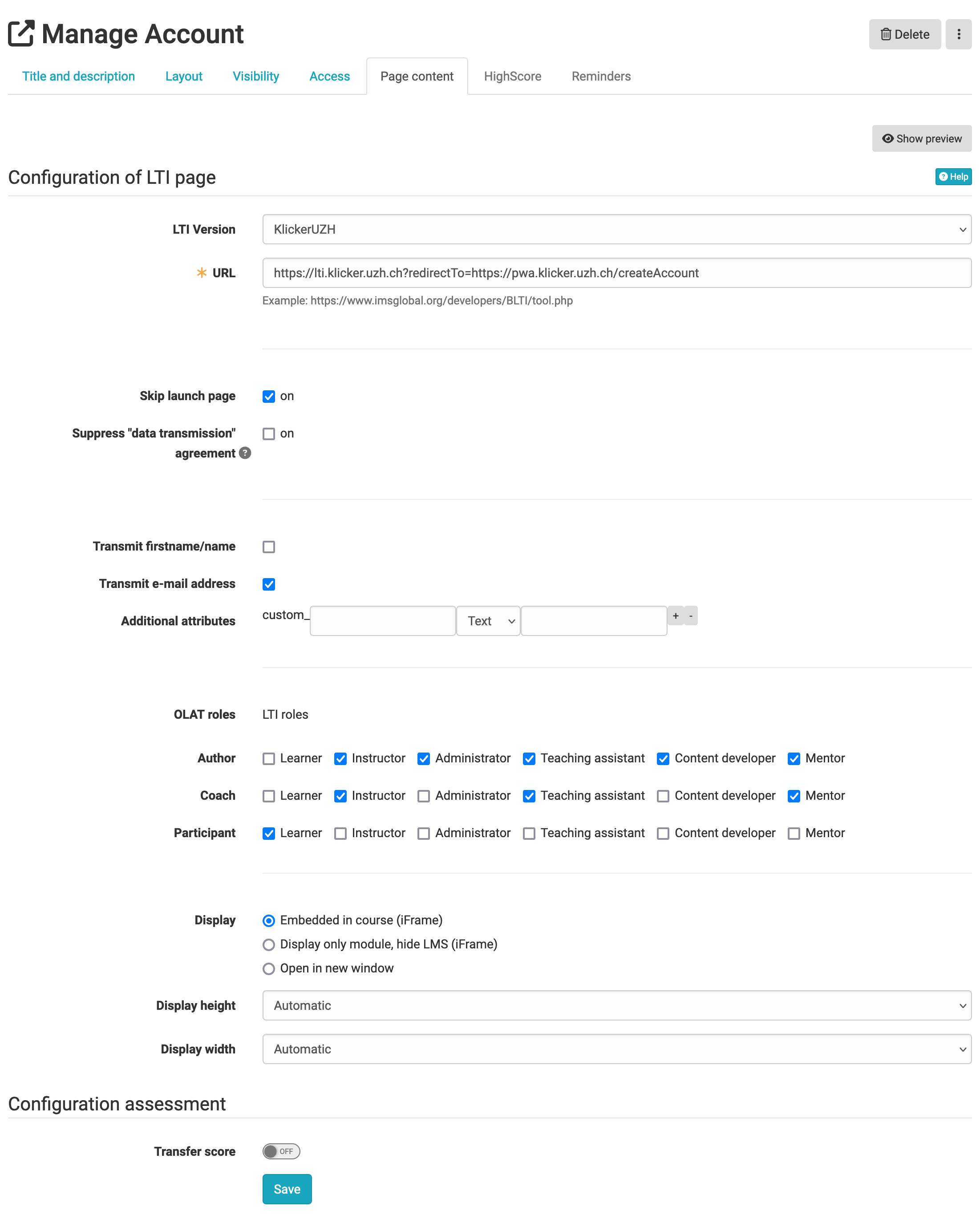
- To ensure that students can create or update their KlickerUZH account and connect them correctly to their OLAT account through LTI, it is essential to include an account management LTI page.
- Create another "LTI Page" element in your OLAT course, select KlickerUZH as the LTI version, and add the correct URL from the course overview under “LTI Links” > “Copy LTI link (Account Management).”
- Activate both “Skip launch page” and “Transmit E-Mail address”. This step is crucial, as we can only ensure the integrity of new accounts if the e-mail is transmitted.
- This link is the same for all courses in KlickerUZH.
Individual Activity Links
- As with the previous elements, you can integrate all practice quizzes and microlearnings as individual LTI pages in your OLAT self-learning modules. Create an "LTI Page" element in your OLAT course for each activity, select KlickerUZH as the LTI version, and add the correct URL for the activity.
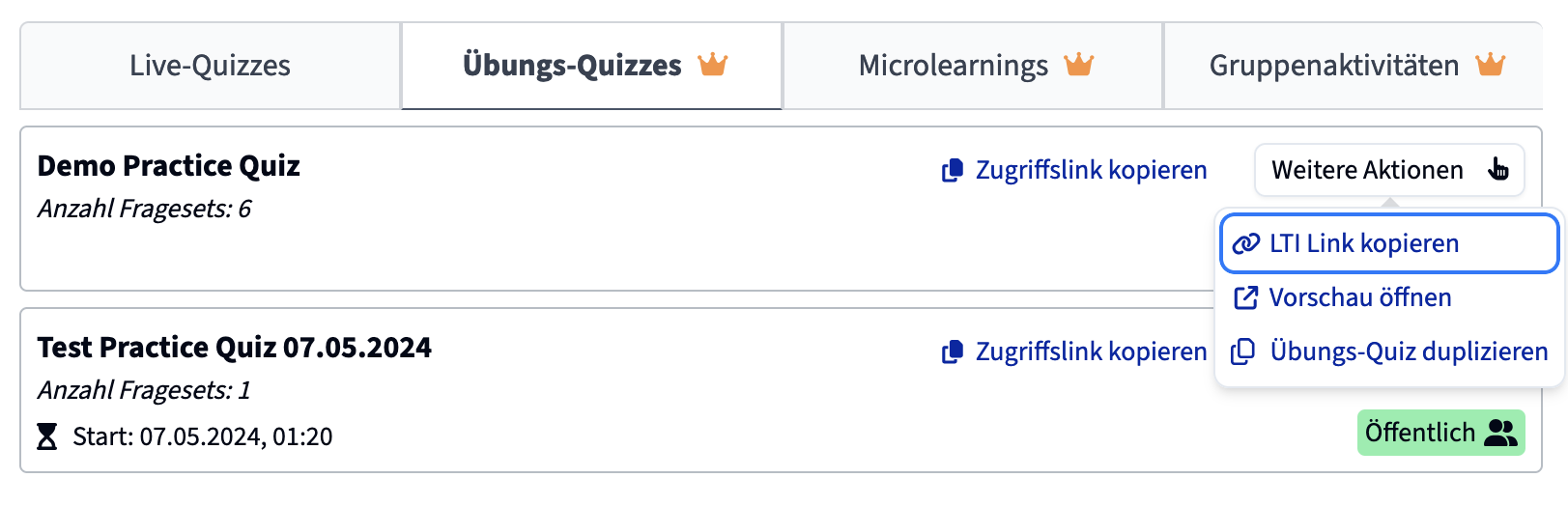
- You can find the LTI access link for each individual asynchronous activity in the dropdown on the corresponding activity in the course overview or on the activities list, as shown below.
- Activate “Skip launch page”.