Course Chatbot
What is the course chatbot?
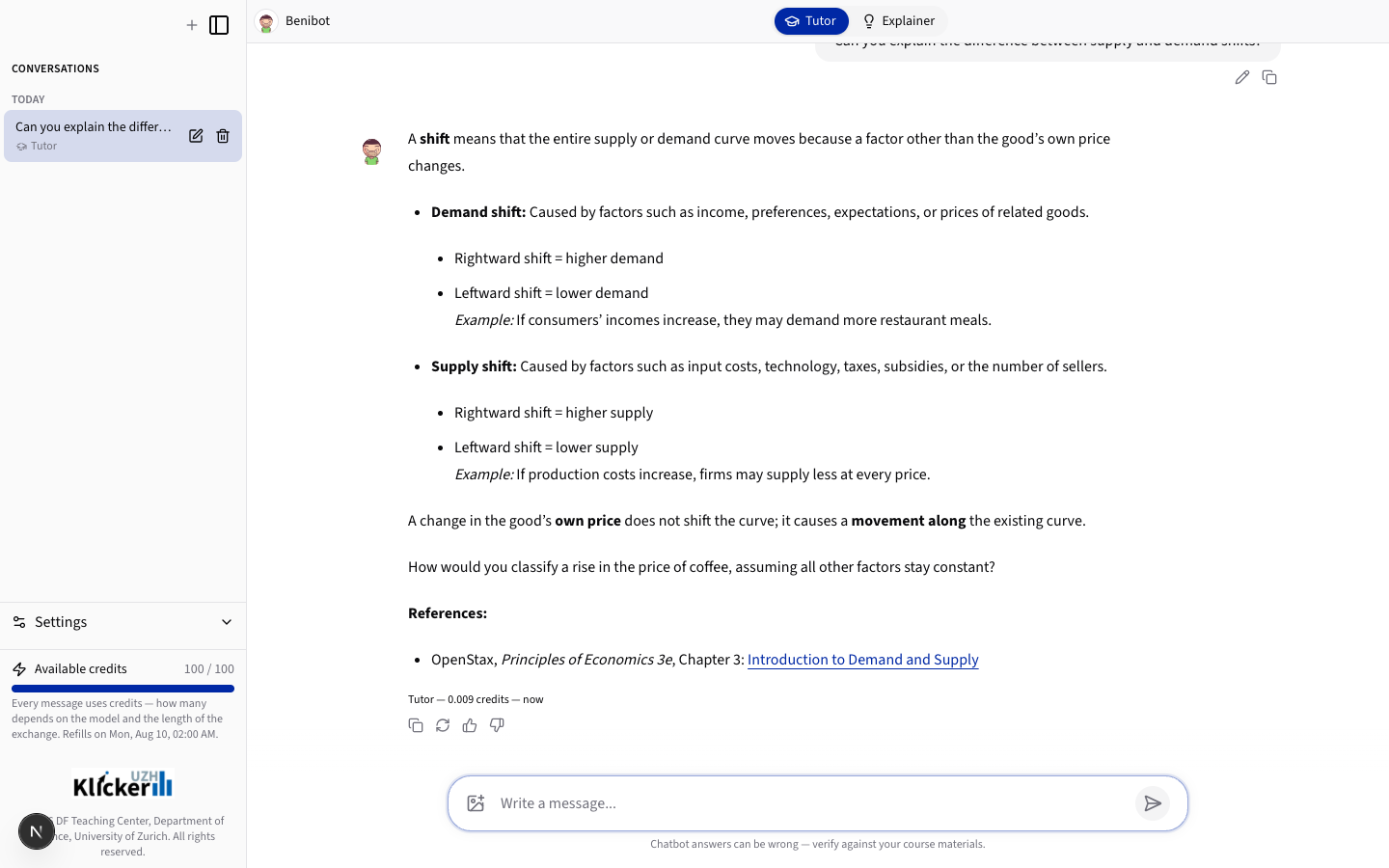
The course chatbot is an AI assistant for a specific course. You can ask it questions about the course content and receive answers in a chat interface. Depending on how your lecturer has set it up, the chatbot can guide you with questions, explain topics directly, or refer to the materials of your course. This section describes the student view; lecturers can find the corresponding information in the chatbot tutorial.
AI-generated answers can be wrong or incomplete. Always verify important information against the official course materials before you rely on it, especially when preparing for an exam.
How do I get access?
The chatbot belongs to one course, so you need to be logged in with your KlickerUZH account and be enrolled in that course.
- Open the link: Your lecturer shares a chatbot link, either directly or embedded in a page of the learning management system of the course (for example OpenOLAT or Moodle).
- Get enrolled automatically: If you are logged in and not yet part of the course, opening the link enrols you and redirects you into the chat interface.
- Accept the disclaimer: Before your first message, you have to accept a short disclaimer. If you decline, the chatbot stays blocked; you can change that decision later when you open the chatbot directly (the corresponding button is not shown in a view embedded in the learning management system).
If you do not have a KlickerUZH account yet, please refer to the tutorial on participant accounts first.
How do I chat with the assistant?
Type your question in the input field at the bottom and send it. The answer is streamed back to you as it is generated. Beyond simply asking questions, the chat offers a few functions:
- Several conversations: You can hold multiple conversations in parallel and switch between them in the sidebar. This helps you keep separate topics apart, for example one conversation per lecture week.
- Rename and delete: Every conversation can be renamed. Deleting one asks for a confirmation directly in the sidebar before it is removed.
- Conversation modes: If the chatbot offers more than one mode (for example a tutor mode that guides you with questions and an explainer mode that explains directly), a mode switcher is displayed. If only one mode is available, no switcher appears. A change of mode applies to the next message you send.
- Editing a message: You can edit one of your earlier messages. The assistant then generates a new answer variant, and a small pager lets you switch back and forth between the variants.
- Images: For models that support images, a button lets you attach up to three images to a message. The assistant describes the image and takes it into account in follow-up answers, which are marked with an "Image analyzed" indicator.
How do I choose a model and reasoning effort?
If your lecturer has enabled model selection, you can choose the AI model in the settings panel of the chat. The available models depend on the course and on the deployment, so what you see may differ from what other courses offer.
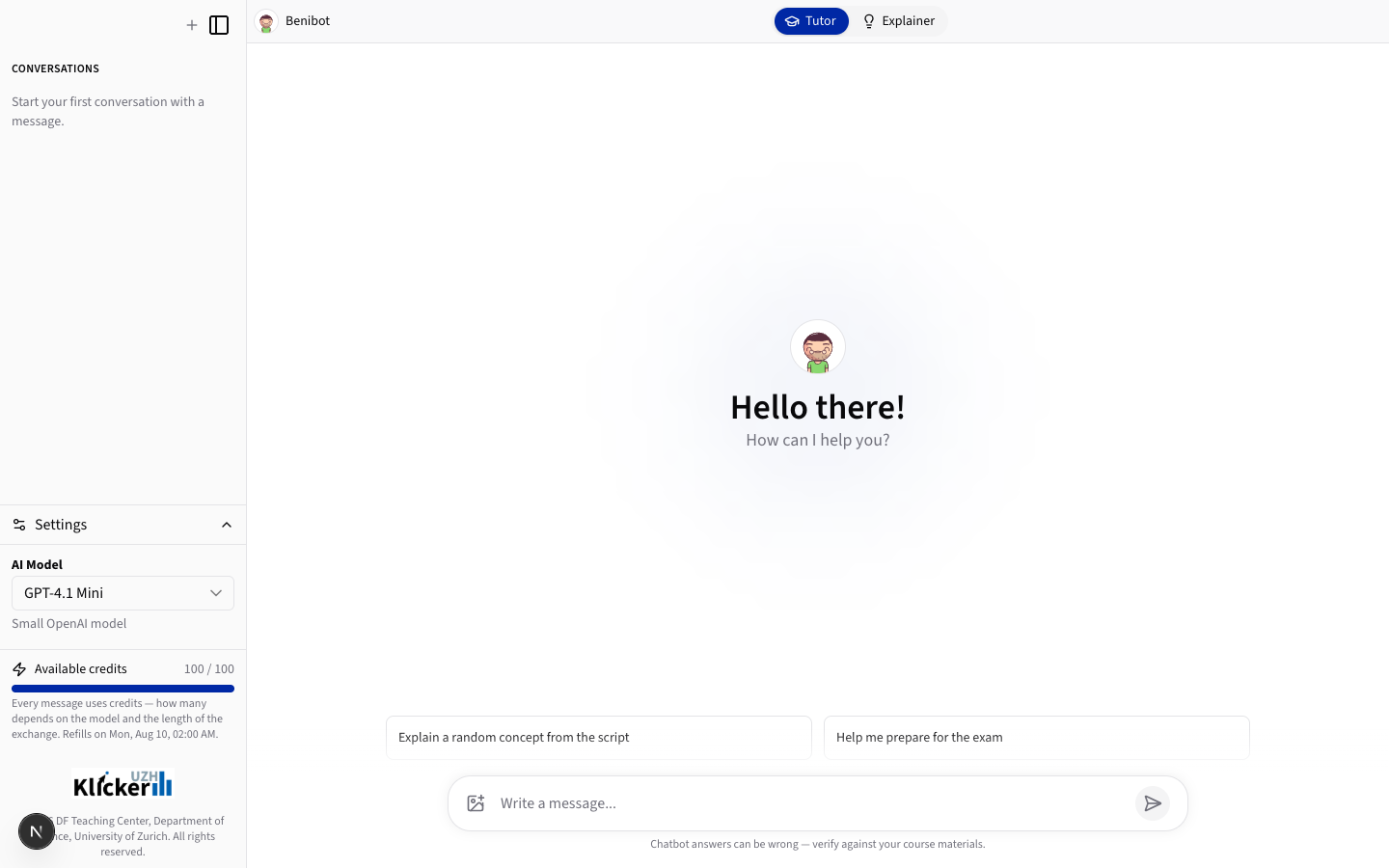
- Without model selection: The model is chosen automatically. If your credits run out, the chatbot falls back to a smaller model.
- With model selection: You pick a model from the list your lecturer has allowed. In addition, a small fallback model always stays available, so you are never left without an option.
- Reasoning effort: Models that support reasoning additionally offer a choice of effort level. A higher effort can improve answers to difficult questions, but the answer takes longer and consumes more credits.
How do credits work?
You have your own credit balance for each chatbot. The cost of a turn depends on the selected model and on the length of the conversation, so it is not one credit per message. A long conversation with a lot of previous messages consumes more credits than a short question, which is another good reason to start a new conversation for a new topic.
At the bottom of the sidebar, you see your remaining balance together with the date of the next refill, or the information that your credits do not refill automatically. If your balance reaches zero, the chatbot keeps working and answers with a smaller model.
How do I rate an answer?
Below every answer, you can mark it as helpful or not helpful. You can change your rating later or retract it entirely. Only your current rating is stored, without any free text. The stored ratings allow the KlickerUZH team to review the quality of the answers over time.
Does the chatbot show sources?
If your chatbot is connected to a knowledge base with course materials, answers can cite them. Numbered markers such as [1] in the answer refer to source cards below it, which point to the corresponding file and page or to a link. Not every chatbot is connected to a knowledge base; if yours is not, the assistant answers based on the AI model alone and no sources are shown.
In which language does the chatbot answer?
The chat interface follows the language of the KlickerUZH application you came from, so there is no separate language switcher inside the chat. In German, the interface uses the informal "Du" and Swiss spelling. The language of the answers depends on how your chatbot has been configured: typically, the assistant answers in German and switches to English when you write your question in English.
What happens with my data?
Your conversations are processed by an AI model provider and may be reviewed in anonymised form to improve the offering. Please do not share personal data in your prompts, neither your own nor that of other people. The binding privacy statement is provided separately from this documentation.